Usage
Once View Exports SVG is installed and running, you can browse, preview, and manage SVG components directly inside Visual Studio Code.
This guide focuses on the day-to-day workflow: how to explore icons, interact with them, and use them efficiently in your project.
🔄 Core Workflow
The typical workflow with View Exports SVG looks like this:
- Open the extension (context menu or command palette)
- Browse detected SVG components in a grid
- Preview icons visually
- Copy, export, or edit them using built-in tools
The following sections explain each step in detail.
🧭 Opening the Extension
You can open View Exports SVG at any time using:
- The context menu on files or folders
- The Command Palette
If this is your first time, make sure you've completed the Getting Started guide.
⚙️ Browsing Icons
Once opened, the panel displays all detected SVG components in a grid layout.
Each item shows:
- A live preview
- The component name
- Quick actions
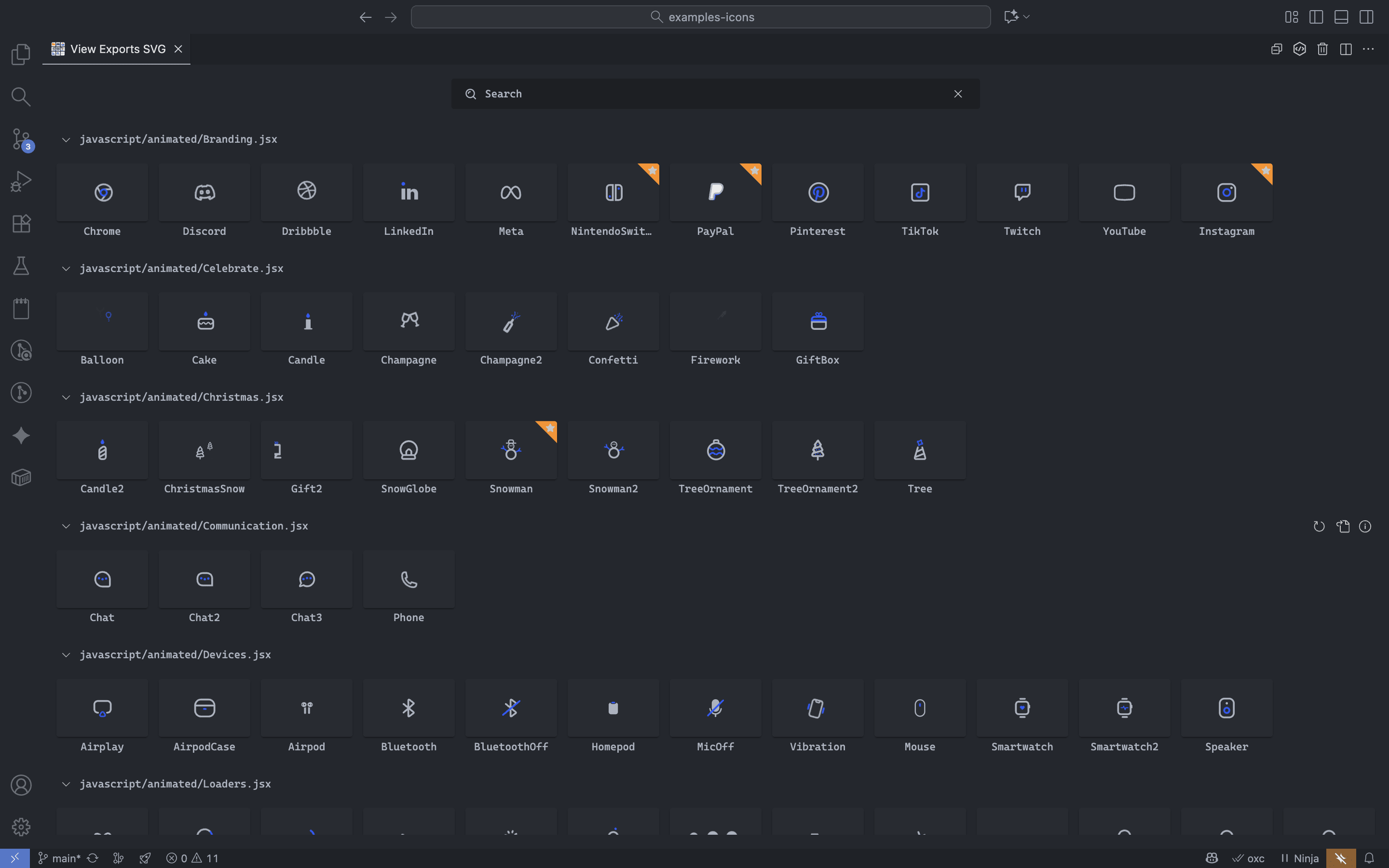
🎯 Interacting with Icons
Click Actions
- Copy component name to clipboard
- Open the DevTools panel
- Add to recent icons (configurable)
Favorites & Recent Icons
Icons are organized into two collections:
- Favorites — hover an icon and click ⭐ to mark or unmark
- Recent — automatically tracked as you open icons
Both collections have configurable limits via JT-View-Exports-SVG.iconCollection.
Context Menu
Right-click an icon to:
- Copy name or code snippet
- Open in editor
- Copy as PNG or SVG
- Download as PNG or SVG
👁 Previewing and Editing Icons
Selecting an icon opens the DevTools panel, where you can:
- Preview icons in real time
- Edit props in the playground
- Reset or export results
For advanced editing features, see: DevTools Panel →
🧩 Alternative Workflow: Drag & Drop
You can also drag and drop files directly into the extension start screen.
This workflow is useful when:
- Exploring icons outside the workspace
- Testing individual files quickly
Drag & Drop files into the View Exports SVG panel to preview their SVG components.
Security Limitation
Due to VS Code's WebView sandbox restrictions, direct access to file paths is blocked.
When you drag and drop files into the panel, the extension reads their contents and creates temporary
in-memory versions for safe preview.
🗑️ Cache Management
The extension caches scanned files and component data to speed up repeated scans.
Three clearing modes are available from the Command Palette (⌘⇧P) or the editor/title action submenu (toolbar icon):
| Mode | What it clears |
|---|---|
| Clear Cache | Scanned file and component data. Collections are preserved. |
| Clear Collections Cache | Recent and favorite icons only. File cache is preserved. |
| Clear All Cache | Everything, including collections. |
Use Clear Cache after renaming or reorganizing your icon files. Use Clear Collections Cache to reset your recent/favorite history without triggering a full rescan.